How to Create a QR Code Menu
Updated October 31, 2026
A QR code menu is a menu page on the web, plus a code that opens it on a guest's phone. You make the menu once, print the code, and every change you make later shows up without reprinting.
What you need
- Your dishes with names, prices and short descriptions.
- Photos of the dishes, if you want them. They are optional.
- Your logo and brand colors, if you want the menu to match your place.
- A printer, or a print shop, for the QR codes.
With a QR menu maker such as MenuHatch you do not need a website or a developer. The menu lives on a page we host, and the QR code points to it.
How to create a QR code menu in seven steps
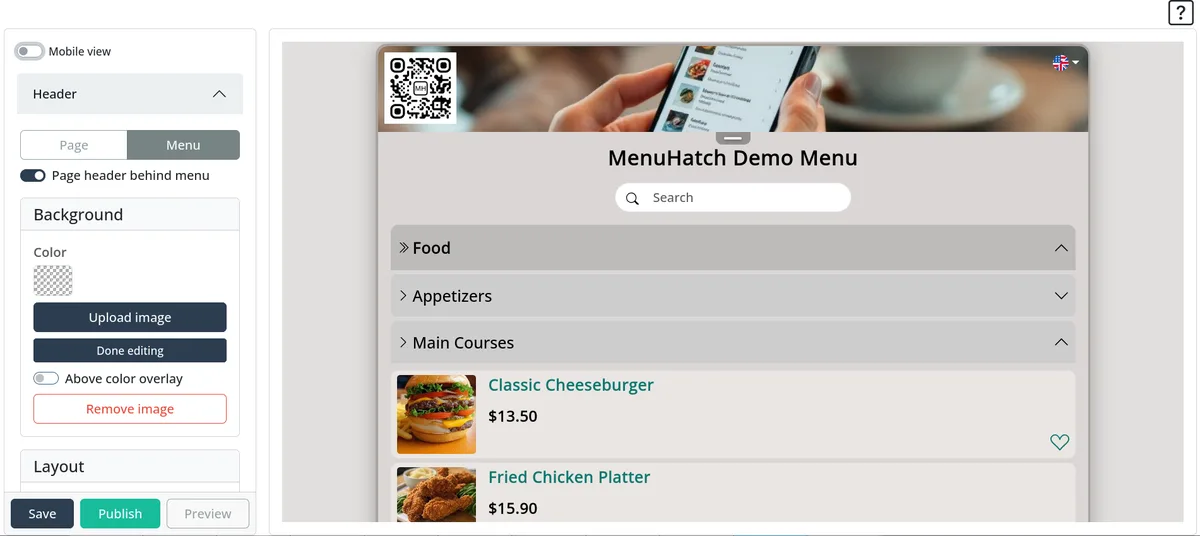
- Create your menu. Give it a name and enter your place, so the menu gets its own web address.
- Add categories. Starters, mains, desserts, drinks. Categories can sit inside other categories, for example wine inside drinks.
- Add your dishes. Enter the name, description and price. Add a photo if you have one, and select allergens and dish labels such as vegan from the lists. More in the guide to allergen information on a menu.
- Choose the look. In the style editor you set colors, add your logo, a header image or a background image, and the live preview shows the result as you change it.
- Add languages. If you have international guests, switch on more languages and let AI translate the menu. Read the guide to a multilingual restaurant menu.
- Check the menu on your phone. Open it the way a guest would, and read every category.
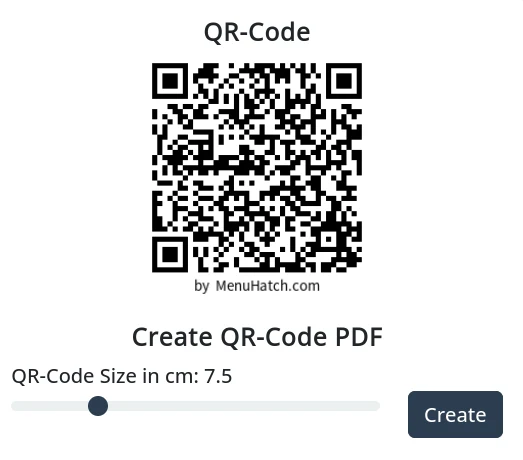
- Print the QR code. Pick the size in centimeters and MenuHatch creates a PDF with several copies per page, ready to cut out.
Where to put the QR code
- On every table. A table tent, a sticker or a small stand. Guests should not have to ask for it.
- At the entrance or the bar. For guests who order at the counter.
- In a place with good light, away from candles, glare and wet surfaces.
Print the code large enough to scan from a normal seating distance, and keep strong contrast, dark code on a light background. Add a short line next to it such as "Scan to see the menu", because some guests do not know what the square is for.
Common mistakes
- Code too small or low contrast. If a phone needs three tries, guests give up and ask for a paper menu.
- No test. Scan every printed code with two different phones before you put them out.
- A PDF instead of a menu page. A PDF has to be pinched and zoomed on a phone. A menu page fits the screen.
- Outdated prices. Update the menu when something changes. The same code keeps working.
Common questions
Do guests need an app?
No. The phone camera opens the menu in the browser.
Do I have to reprint the QR code when the menu changes?
No. The code points to the menu page, not to a fixed list of dishes. Change a price or add a dish and the page updates.
Can I keep a paper menu as well?
Yes. Many places keep a few paper copies for guests who prefer them, and let the QR code do the rest.
Create your QR code menu with MenuHatch
Build your menu, choose the look, add your languages and print the QR code. Start with a free trial, no commitment.
Start free trial See pricing